Side Sheets
Anchor the bottom sheet to the leading or trailing edge of the screen.
Ever wanted your sheet to slide in from the side? Now it can! The placement prop lets you dock the sheet to the leading or trailing edge — perfect for iPad and tablet layouts.
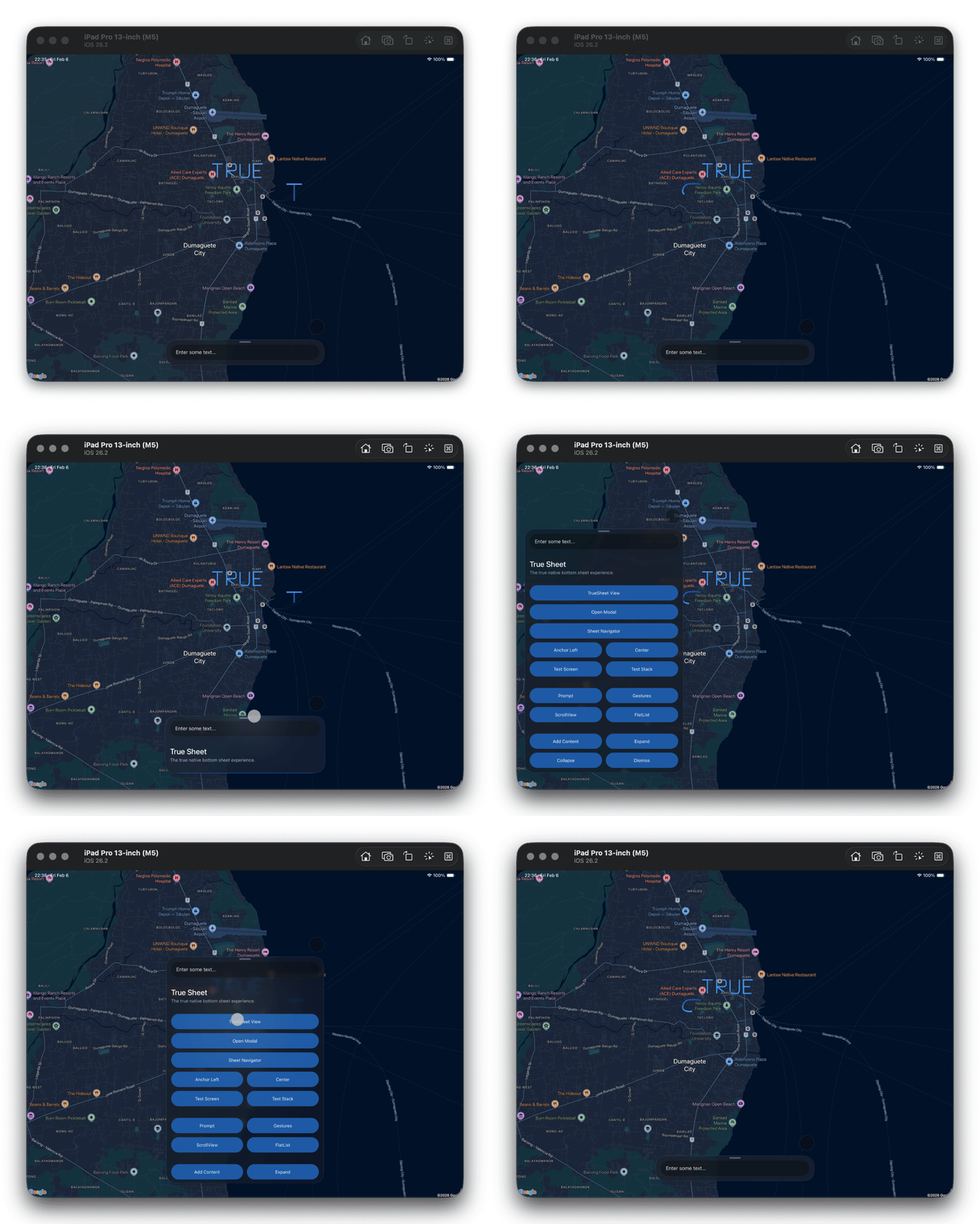
How?
Set placement to "leading" or "trailing" to position the sheet along that edge. Edges follow the layout direction, so "leading" is the left edge in LTR and the right edge in RTL.
export const App = () => {
  return (
    <TrueSheet
      detents={['auto', 1]}
      placement="leading"
      maxContentWidth={400}
    >
      <View />
    </TrueSheet>
  )
}
Combine with maxContentWidth to control the sheet width when anchored.
Adjusting the Edge Offset
On Android and Web, you can control the margin from the screen edge using placementOffset. The default is 16.
export const App = () => {
  return (
    <TrueSheet
      placement="leading"
      placementOffset={24}
      detents={['auto', 1]}
      maxContentWidth={400}
    >
      <View />
    </TrueSheet>
  )
}
On iOS, the system controls edge margins. iOS 27+ uses UISheetPresentationController's native preferredPlacement; earlier versions use sourceView. The sheet will always float slightly from the edge due to system-defined margins.
Automatic vs Center
The default "automatic" lets the system decide where the sheet goes. "center" asks for a centered sheet explicitly. The two only differ on iOS 27+, where they map to preferredPlacement. On Android, Web, and iOS 26 and below, both center the sheet.
placement and maxContentWidth are ignored on phones in portrait orientation — the sheet always spans the full width.